 SDK AI Hub
Orgora Clipper
Clip the LinkedIn profile you are looking at into Orgora Charts. The extension runs on your computer. It does not send profile data to us — we have no servers.
Download Orgora Charts on the App Store Mac App Store
Safari (iPhone, iPad, and Mac) — already in the app
If you installed Orgora Charts, Clipper is already on the device. You do not download a separate plugin. Open profiles in Safari — the LinkedIn app cannot run Clipper.
- Open Orgora Charts once so the device registers the extension. A first-run sheet can take you to Safari settings.
- iPhone/iPad: Settings → Apps → Safari → Extensions → Orgora Clipper, turn it on.
Mac: Safari → Settings → Extensions, check Orgora Clipper. The app can open that pane for you. - Allow linkedin.com (Permissions → Allow).
- In Safari, open a LinkedIn profile (
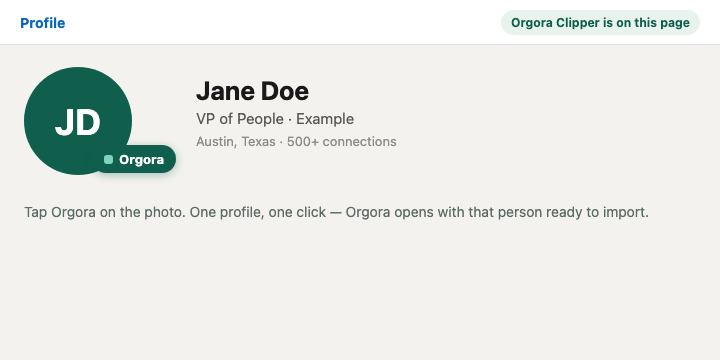
linkedin.com/in/…). - Tap Orgora on the photo (or Clip to Orgora in the corner), or the puzzle-piece in the address bar → Orgora Clipper → Clip to Orgora.
- Switch back to Orgora Charts. Waiting people show on the LinkedIn Home tile, or open Account → LinkedIn.
Chrome — Chrome Web Store

Chrome on iPhone and iPad cannot install extensions — use Safari there.
On a computer, add Orgora Clipper from the Chrome Web Store. On a LinkedIn profile,
tap Orgora on the photo (or Clip to Orgora in the corner).
Orgora Charts opens with that person ready to import — no file download.
Nothing is sent to us.
If Chrome still saves a .json file, the extension is old
(chrome://extensions must show 1.2.4 or newer):
remove it, then Add to Chrome again.