 SDK AI Hub
Orgora Charts — Support
Private org charts for iPhone, iPad, Mac, and the web.
What a chart looks like
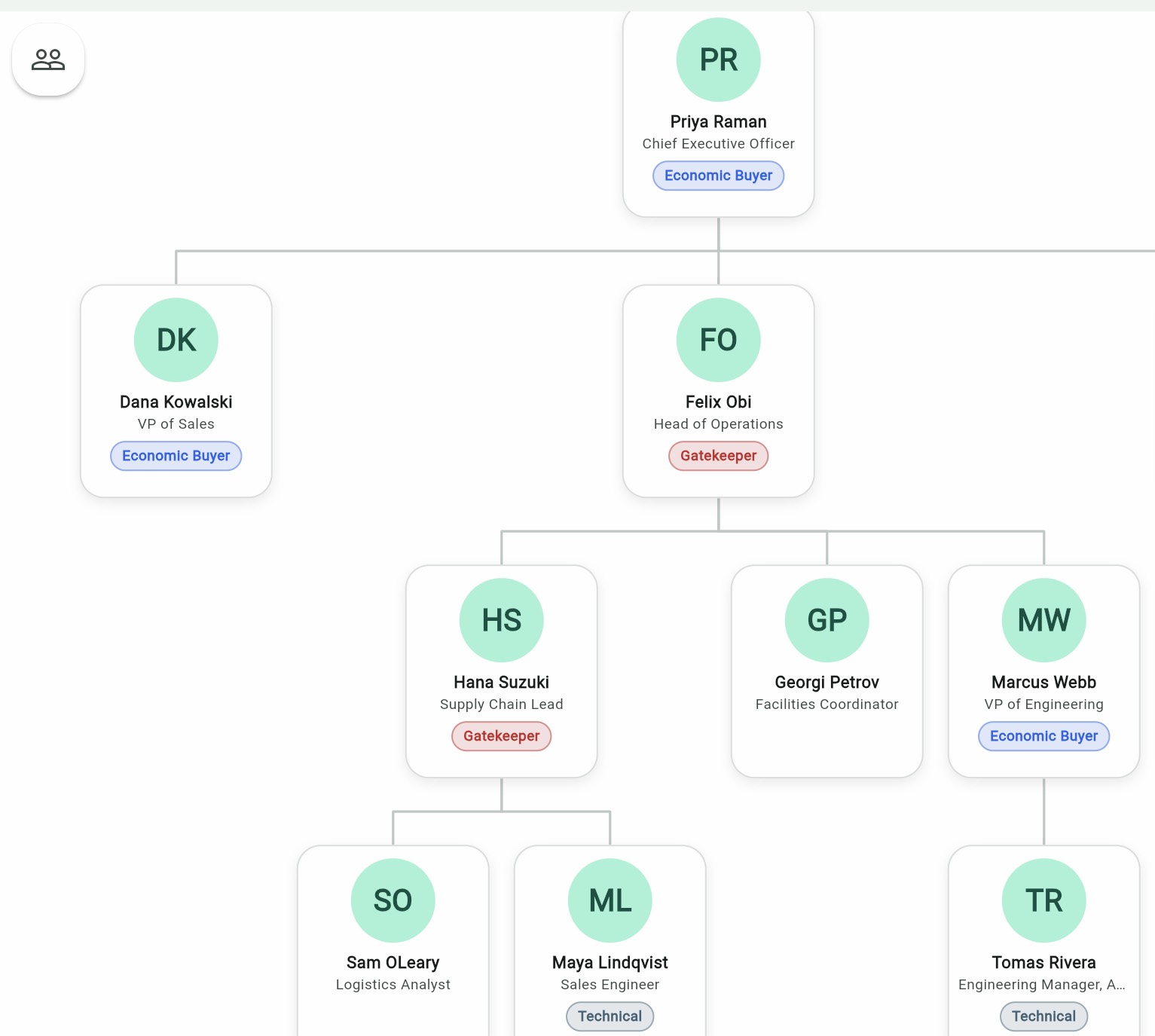
People sit in a reporting tree. Each card shows the name, the title, and a role chip. Watch a short tour on the homepage.
Frequently asked questions
How do I report a bug?
In the app: tap your photo, then Submit a ticket, or open Help and
choose Report a bug or Request a feature. Your sign-in email is
included so we can reply. Do not paste chart contents.
There is no public ticket list and no ticket number.
Where is my data stored?
On your device. If you continue with Google or Microsoft, charts you save
also live in your own Google Drive or OneDrive. SDK AI Hub does not host
your files and cannot read them. Sign out removes the charts from this
device only. If the save does not finish, Sign out anyway still leaves;
the charts stay in your cloud.
Do I create an Orgora account?
No. There is no Orgora sign-up. Continue with Google or Microsoft connects
the cloud storage you already have. Signing out on the device clears the
local session.
How do I move data to a new device?
Sign in with the same Google or Microsoft account, or restore the new
device from a backup of the old one.
Is email sync required?
No. It is optional. If you enable it, the app talks directly to your own
email provider. Credentials stay in the device keychain.
Can I clip LinkedIn profiles from Chrome?
Safari Clipper is already inside Orgora Charts. On a computer, add
Orgora Clipper from the
Chrome Web Store,
then tap Orgora on the LinkedIn photo. Orgora opens
with that person ready to import (no file download).
Chrome on iPhone and iPad cannot install extensions — use Safari there.
Clipper setup.
Contact
Found a bug or have a question? Open an issue on GitHub.